

How to manage Zeus AI QA Run history
Last updated October 26, 2026
Overview
The Run history interface serves as an auditing and quality assurance log that tracks historical Zeus AI interactions across customer conversations. It provides a centralized view to evaluate Zeus AI responses, inspect execution duration, trace Zeus AI agent reasoning, and manage review workflows.
Key features
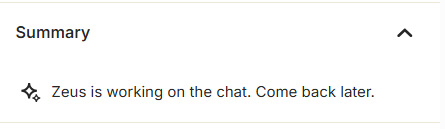
- Zeus AI Run Tracking: Logs every customer conversation with primary details, including customers, start times, run duration, CSAT scores, AI summaries, operational statuses (In Progress, Escalated), and review stages (Pending, Reviewed or Required).
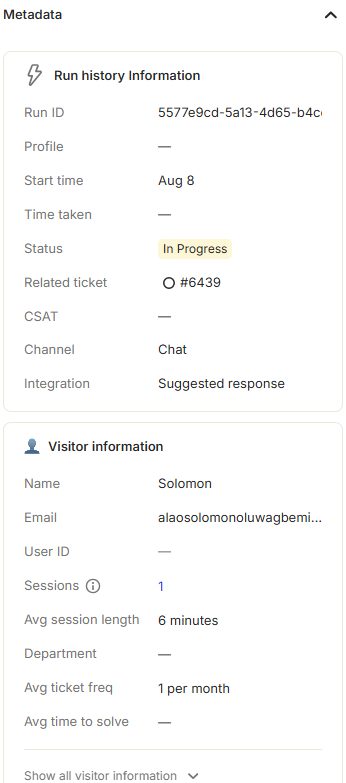
- Session Metadata & Visitor Insights: Run history information and visitor information is available
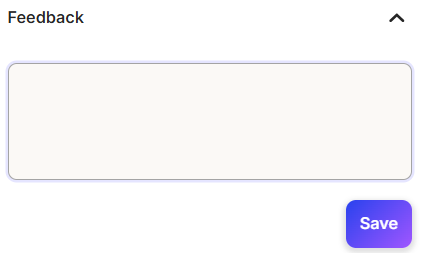
- Qualitative Feedback: Dedicated input panel allowing reviewers to write, edit, and save internal evaluation notes.
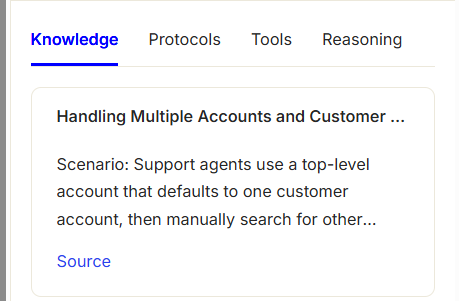
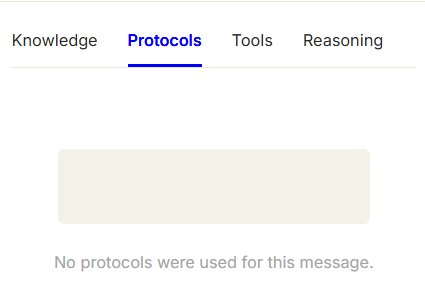
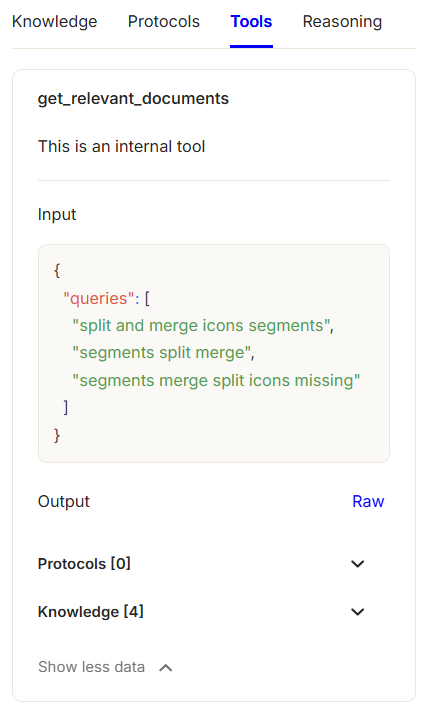
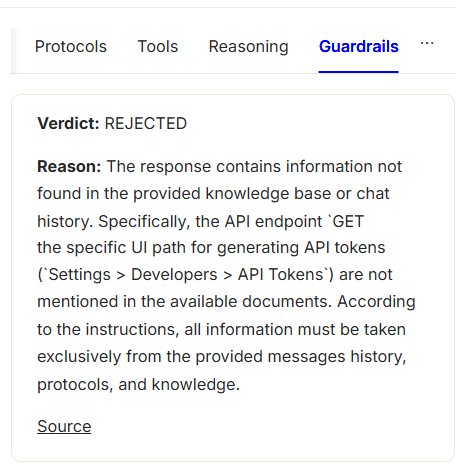
- Deep Diagnostic Tabs: Inspect execution details via dedicated tabs for Knowledge (retrieved help articles), Protocols (active compliance rules), Tools (triggered function calls with raw payloads), and Reasoning (AI decision logic).
How to audit a run
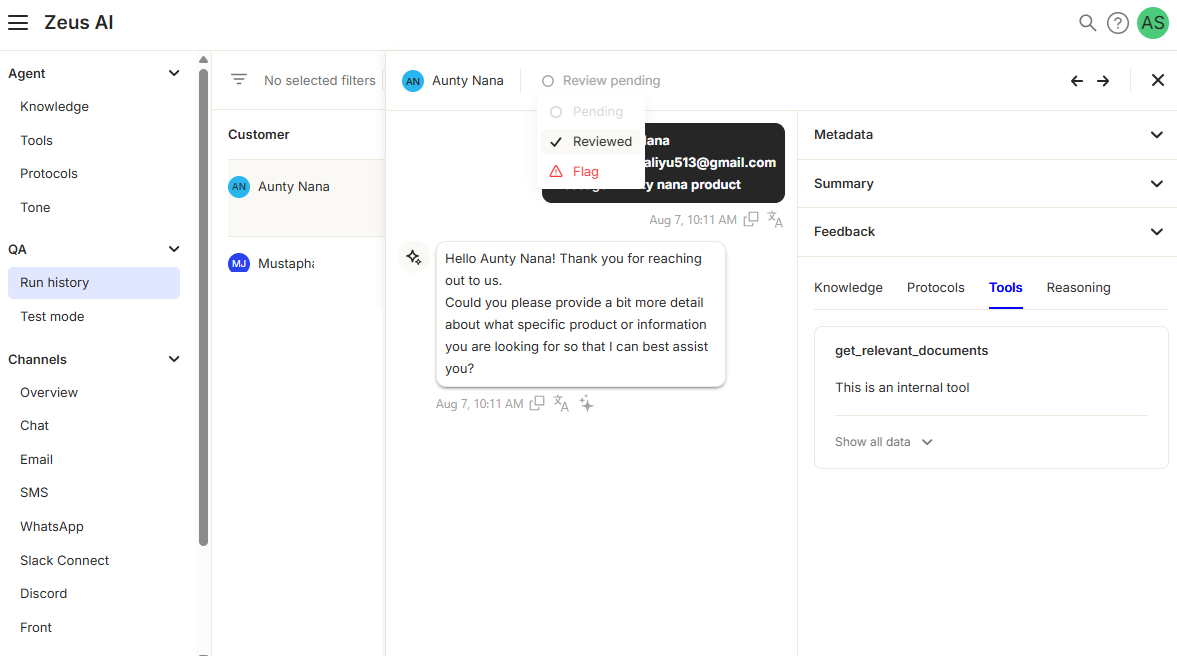
To enhance the quality of your Zeus AI answers, you can use this feature to audit responses and assign the corresponding review status, whether the answer is good, pending review, or should be flagged as inaccurate.
- To audit the a Zeus AI response, go to " Zeus AI > QA > Run history " and click the row to open the detail pane for that conversation.
- Review the customer query against the AI response for accuracy and tone.
- Check the right-hand panel tabs (Knowledge, Protocols, Tools, Reasoning) to verify function calls and logic.
- Update the review status.
Review status options in a run. Click the image to enlarge.
How to view session metadata, feedback & diagnostics
To inspect detailed information, session metrics, and decision logic for a Zeus AI conversation:
- Go to " Zeus AI > QA > Run history " and click a row to open the detail pane for that conversation. In the side pane, navigate through the displayed accordions and tabs:
Was this article helpful?