

Learn about blocks in Zeus AI native tools
Last updated September 28, 2026
Start block
Every time you create a new tool, a start block is automatically included in your canvas with the first setup. This block acts as the foundation and entry point. This start block is the very first block in your design. You must connect it to the rest of your blocks to build your flow.
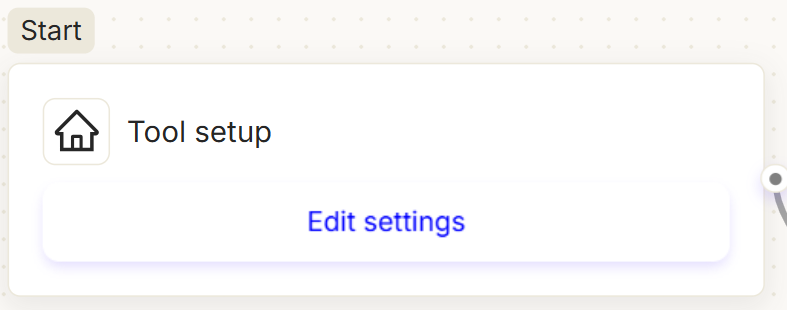
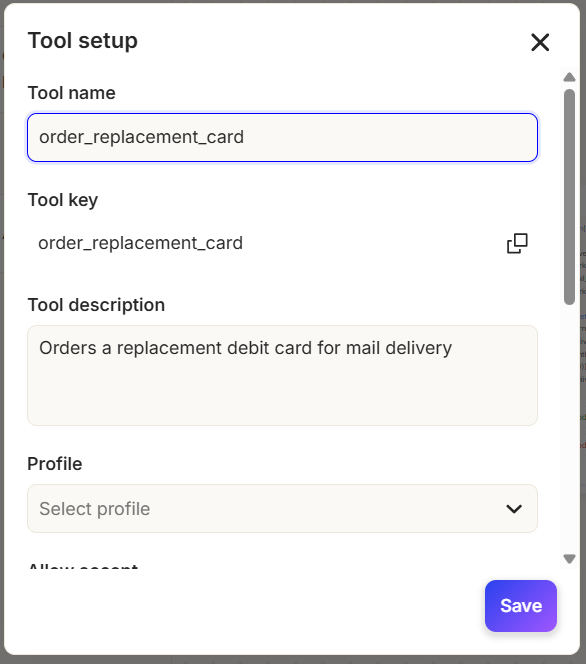
When you click "Edit settings", the "Tool setup" panel appears, displaying the initial configuration applied when the tool was created.
Branching blocks
Route Zeus AI conversations based on custom logic and rules.
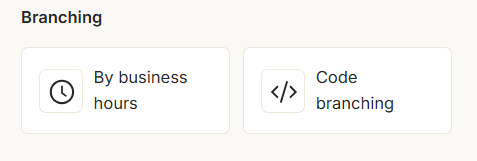
1. By business hours
This block allows you to configure two branches in your tool flow: one followed by Zeus AI "During business hours" and another for "Outside business hours".
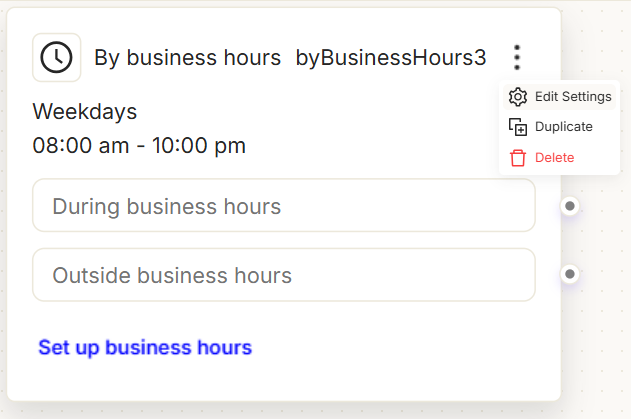
You can also adjust your business hours by clicking "Set up business hours".
Important: This is useful when you want to tailor how Zeus AI handles support during the day and provide a different type of support at night.
2. Code branching
Important: The Code branching block may not be available in all cases. Contact Support if you have questions about availability.
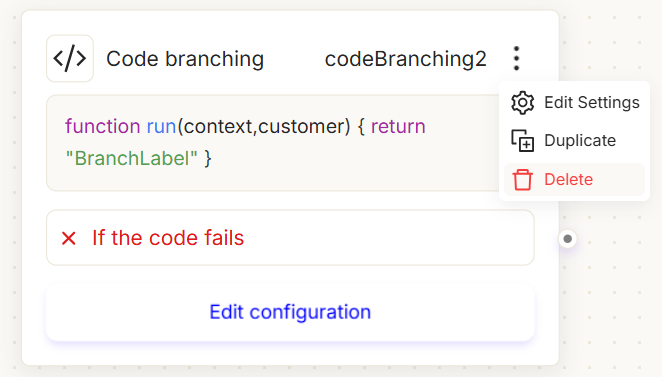
This block allows you to write custom JavaScript to decide which path your Zeus AI tool should take next. It is perfect for creating dynamic routing rules based on user data or conversation history.
How it works
Think of this block as a traffic controller. It takes in information, processes it using a short piece of code, and sends the user down a specific path based on the result.
Inside the block, you'll see a small JavaScript function you can edit.
context&customer: These are the inputs. They hold data about the current conversation and the customer (like their name, past purchases, or recent choices).return "BranchLabel": This is the decision. The text your code returns determines exactly which path (Output) Zeus AI will take next.
Based on what your code returns, you can map out different conversational outputs:
- First output / Second output / N output: These are your custom branches.
- If the code fails (Error Branch): This is your safety net. If there is a typo in the code or a temporary system glitch, the Zeus AI won't freeze. It will route the user down this path instead.
For example: If your code checks a customer's VIP status and exactly returns "VIP_1", you can route them straight to the first output "VIP_1" (a premium support path).
When you click “Edit configuration,” edit the Code.
Click “Add Output” to configure the block’s output values based on what your code returns. Each output represents a branch in the tool’s flow.
Then, click “Confirm” to save your changes.
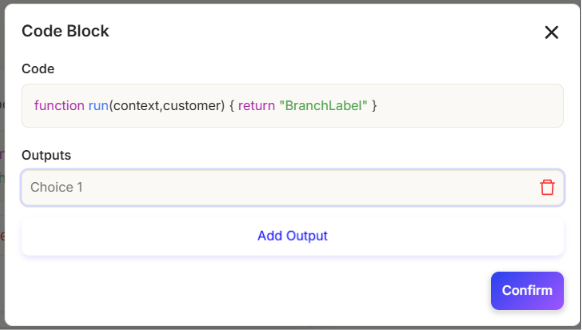
You can now see the outputs in the block, with each output representing a branch.
Workflows blocks
Call insert custom code, or connect to APIs as steps within the tool's flow.
1. Code
Important: The Code block may not be available in all cases. Contact Support if you have questions about availability.
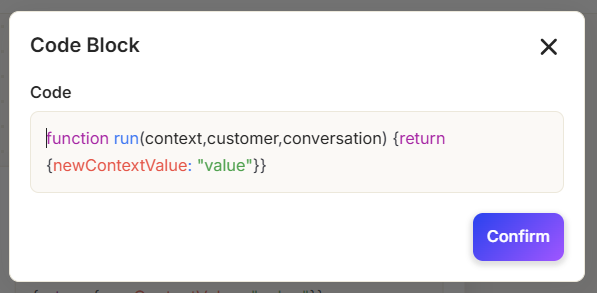
The Code block lets you run custom JavaScript during a Zeus AI conversation. You can use it when you need to perform calculations, manipulate variables, format data, or execute logic that isn't available in other blocks.
How it works
Write or update the JavaScript code that Zeus AI should execute.
When Zeus AI reaches this block, it runs the code using the available workflow data (such as the conversation, customer, or context).
Zeus AI continues through one of two outputs:
- If the code succeeds: The code runs without errors, and the flow continues normally through the first output branch.
- If the code fails: An error occurs while executing the code, and the flow continues through the second path.
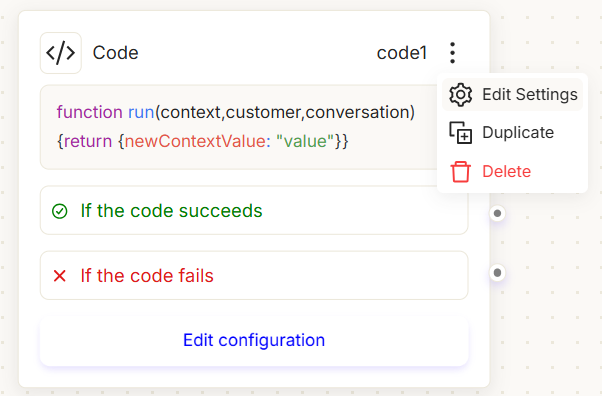
When you click "Edit configuration" you can edit the code, then click "Confirm" to save your changes.
2. API
Important: The API block may not be available in all cases. Contact Support if you have questions about availability.
The API block allows you to send or retrieve information from another system directly from your Zeus AI tool flow. For example, you can use it to check an order status, look up customer information, get real-time data, or send information to another system.
How it works
Think of the API block as a digital courier. It takes information from your Zeus AI flow, sends it to another system, and brings the response back so you can use it in the rest of your flow.
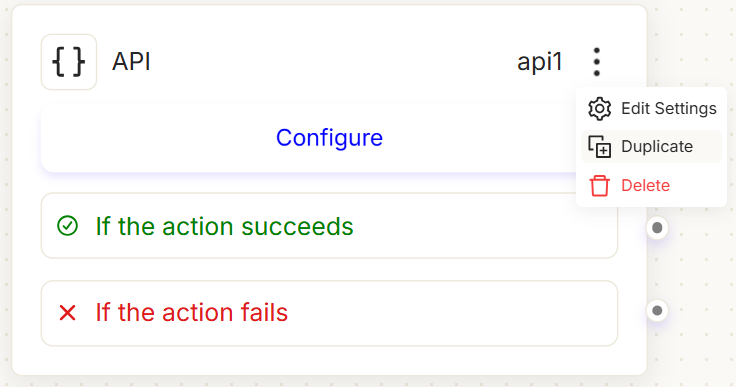
- Configure: This is where you select or build the blueprint for your API request. When you click it, a configuration modal opens up.
- API Selection: You can configure a new API, select an existing API, or click Edit API template to customize the API request, including the HTTP method (GET, POST, etc.), headers, and payload.
Important: You can select any API created through "{ } New API Call..."
Input variables:
Input variables are the information you give to the API. Some APIs need information before they can process a request. For example, an order-status API might need an Order ID to know which order to look up.
- Input variables: This field represents the information the API needs.
- Value: Enter the value or variable from your Zeus AI flow that should be sent to the API.
Output variables:
Once the API responds with data, you need a way to store that information so the tool can use it later.
- Expression: This is where you isolate the specific piece of data you want from the raw API response (usually using JSONPath, e.g., $.body.customer.name).
- Variable: This is the container where that extracted data is saved. Once mapped, you can drop this variable directly into text messages to personalize the chat.
- + Add: This allows you to extract multiple fields from a single API call (for example, pulling both an tracking number and a delivery date simultaneously).
Managing Routing & Failures:
After the API call is executed, the flow automatically continues based on whether the request was successful or failed.
- If the action succeeds: The API returned a successful response, and the flow continues through the success branch. Any output variables you configured are now available to use in the following steps.
- If the action fails: The flow continues through the failure branch instead of stopping completely. This gives you an opportunity to handle the problem gracefully.
For example: Success:The API returns a 200 OK response with the requested customer or order information. Fail: You could show a message asking the user to try again later, retry the request, or route the conversation to a human agent.
Return blocks
Pass the final output or response payload back to Zeus AI to complete the tool execution flow.
1. Tool result
The Tool result block acts as the terminal endpoint of your tool flow. It passes formatted text, dynamic variables, or status responses back to Zeus AI, which the agent uses to respond to the customer or complete its action.
How it works
Think of the Tool result block as the final response messenger. Once all calculations, branching decisions, or API calls are completed in your flow, this block gathers the processed information and returns it to the Zeus AI assistant.
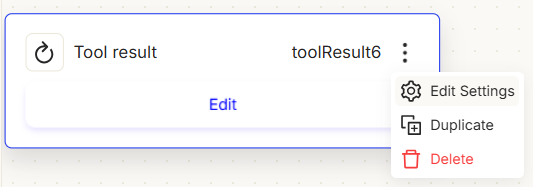
- Edit: Click "Edit" or double-click the block on the canvas to open the configuration modal, update the message text, and save your changes.
- Return text: This field defines the final output message returned by the tool. You can include static plain text alongside dynamic flow variables (such as
{{workflow_input.email_id}}or{{context.expected_date}}) to personalize the response.
Configuring the message
Inside the block setup, enter the message that Zeus AI should receive upon reaching this step. Once configured, click "Save" to confirm your changes and update the block on the canvas.