

How to manage Zeus AI Tools
Last updated September 13, 2026
Overview
Tools represent the action-taking capabilities of your Zeus AI agent. While Knowledge provides the agent with information to read, Tools give it the ability to perform live actions and exchange real-time data with external platforms, for example, tracking a shipment, pulling database records, or updating a ticket.
Zeus AI offers two ways to power actions:
- Native Tools: Custom workflows built directly in the platform using branching blocks, code blocks, or API connections. Once published, you can insert and call that tool directly into protocol instructions.
- MCP Servers: Direct connections to external software (such as Linear, Notion, or custom backends) using the Model Context Protocol.
Getting started
When you navigate to " Zeus AI > Agent > Tools " for the first time or when no tools are configured, you will land on the "Welcome to Tools builder" screen. Then choose one of two onboarding pathways:
- Click "Setup Tool" to build a native workflow on the visual canvas.
- Click "Add MCP" to link an external Model Context Protocol server.
How to set up a Zeus AI native tool
- Go to " Zeus AI > Agent > Tools " and click "Setup Tool" (or "+ Set up Tool" from the main dashboard).
- Enter a descriptive "Tool name" (the "Tool key" populates automatically).
- Enter the "Tool description".
- Select the "Profile" this tool will apply to.
- Toggle the action permissions as needed (Allow accept, Allow edit, Allow respond, Allow ignore).
- Click "Get started" at the bottom of the modal. You will be directed to the canvas builder.
Important: Only existing profiles created in " Zeus AI > Configuration > Profiles " are listed. Action permissions determine how Zeus AI handles tool suggestions and execution workflows: •Allow accept: Enables direct approval and execution of a tool action when triggered by the Zeus AI assistant. •Allow edit: Lets a user or supervisor adjust parameters, payload data, or configuration settings before executing the tool action. •Allow respond: Grants permission to generate and return an automated or manual response directly back to the customer after triggering the tool. •Allow ignore: Permits bypassing or discarding the tool execution request without taking any action.
Canvas Setup
- Drag and drop blocks from the left menu to build your logic:
- "Branching": Add condition blocks like By business hours or Code branching.
- "Workflows": Connect custom Code scripts or APIs.
- "Return": Pass the output back to the agent using the Tool result block.
- Configure the blocks and connect the paths as needed.
Important:
•The setup is automatically saved as a "Draft", allowing you to keep editing and publish it later.
•To remove connections or blocks, select the element and click the ellipsis (…) icon, then select "Delete". Alternatively, select the item and press the Delete or Backspace key.
•You can verify the last auto-save by checking the timestamp at the top left of the canvas: Last auto-save: [Date], hh:mm AM/PM.
•The API, Code, and Code Branching blocks may not be available in all cases. Contact Support if you have questions about availability.
•For more information, please read: Learn about blocks in Zeus AI tools.
Publish the tool
- Click "Publish tool" in the top right corner to deploy your tool. Or
- Go to the tool list , then locate the tool you want to publish, click the ellipsis icon and select "Publish" to make the tool "Live".
Important: •If any block configurations or connections are incorrect, an error message will be displayed and the affected block will be highlighted in red. •Once published, you can insert and call that tool directly into protocol instructions.
How to edit a tool
- To edit a native tool, go to " Zeus AI > Agent > Tools " , then locate one you want to edit, click the row or the ellipsis icon and select "Edit".
- Apply the changes.
Important: •The tool is updated with the new configuration. The previous configuration cannot be restored. •If the tool is "Live" and contains unpublished changes, the "Unpublished changes" label will be displayed.
How to delete a tool
- To delete a native tool, go to " Zeus AI > Agent > Tools ", then locate one you want to delete, click the ellipsis icon and select "Delete", or at the top right of the canvas click the ellipsis icon and select "Delete".
- Click "OK" to confirm the action.
Important: Deleted tools cannot be restored.
How to duplicate a tool
- To duplicate a native tool, go to " Zeus AI > Agent > Tools ", then locate one you want to duplicate, click the ellipsis icon and select "Duplicate", or at the top right of the canvas click the ellipsis icon and select "Duplicate".
- Complete the tool setup.
How to set up a MCP server
- To add a MCP server, go to " Zeus AI > Agent > Tools " and click "+ Add MCP Server".
- In the "Provider" dropdown, select the provider you want to configure.
- "Linear": Select this to connect your Linear workspace for task and issue management.
- "Notion": Select this to connect your Notion workspace for documents and databases.
- "Custom": Select this to connect an internal database, custom-built API, or external third-party service.
Important: •If you select "Linear" or "Notion", the server URL is populated. •If you selected "Linear" or "Notion" continue in step 5. •In the "Custom MCP server URL" field, enter your server endpoint URL.
- In the "Server name (optional)" field, enter a descriptive name to identify the server.
- In the "Headers" (optional) field, enter any required JSON authorization headers or API keys.
- Click "Continue" to complete the setup.
Important: If you selected "Linear" or "Notion" you will be directed to their authorization page for approval. Complete the setup.
Server status reference
- Healthy (Green): The server is fully connected, authenticated, and active. Zeus AI can access its tools and run functions in real time.
- Unverified (Blue): The server has been added, but authentication or connection verification failed. No tools are accessible until the server is properly configured or authenticated.
- Degraded (Yellow):The server is operational but experiencing partial failures or limited performance. Zeus AI can still reach the server, but certain tools, functions, or connected APIs may be unavailable, slow, or restricted due to configuration errors or resource limits.
- Disconnected (Red): The active connection to the server was lost or interrupted (e.g., expired OAuth token, server downtime, or invalid URL). Zeus AI cannot reach the server's tools until the connection is restored or refreshed.
How to edit a MCP server
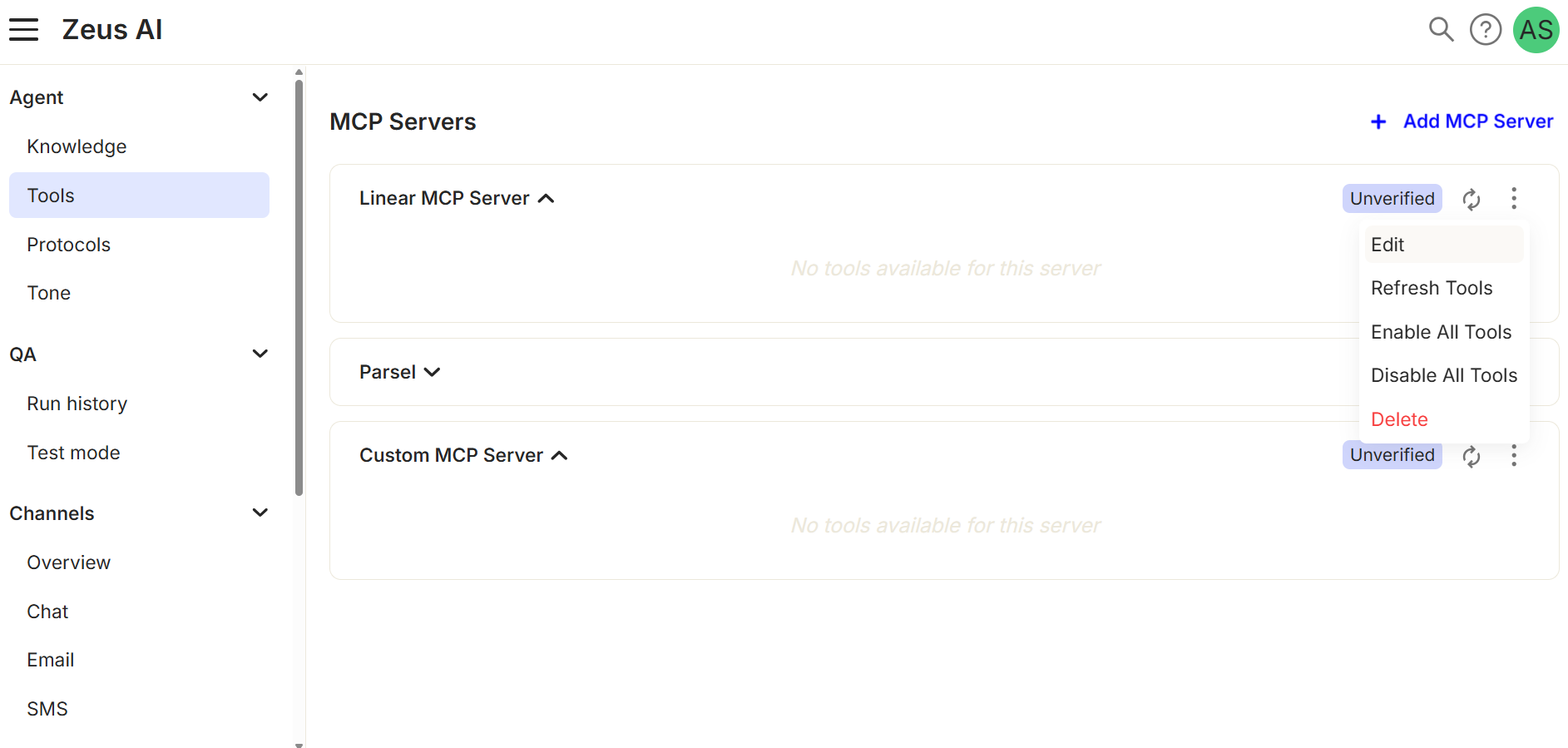
- To edit an MCP server, go to " Zeus AI > Agent > Tools ", locate the MCP server you want to modify, click the ellipsis icon, and select "Edit".
- Update the MCP server setup as needed and click "Save Changes".
Important: The selected Provider cannot be edited. You can, however, edit the Custom MCP server URL, server name, and headers.
How to refresh a MCP server connection
Use this action to sync the server status or fetch newly added tools from your server.
- To refresh an MCP server, go to " Zeus AI > Agent > Tools ", locate the MCP server you want to refresh, and click the refresh icon (↻) directly next to the status badge, or click the ellipsis icon and select "Refresh Tools".
Important: Zeus AI will re-check the server connection and refresh the available tool list.
How to enable or disable all the tools from a MCP server connection
Use this action to enable or disable all tools associated with an MCP server at once.
- Go to " Zeus AI > Agent > Tools ", locate the MCP server you want to manage, click the ellipsis icon and select "Enable All Tools" to enable all available tools, or "Disable All Tools" to disable them.
How to delete a MCP server connection
Use this action to remove a connected MCP server.
- To delete an MCP server, go to " Zeus AI > Agent > Tools ", locate the MCP server you want to delete, click the ellipsis icon and select "Delete".
- Click "OK" co confirm the action.
Important: Deleted MCP servers are permanently removed and cannot be restored.
How to enable or disable a tool
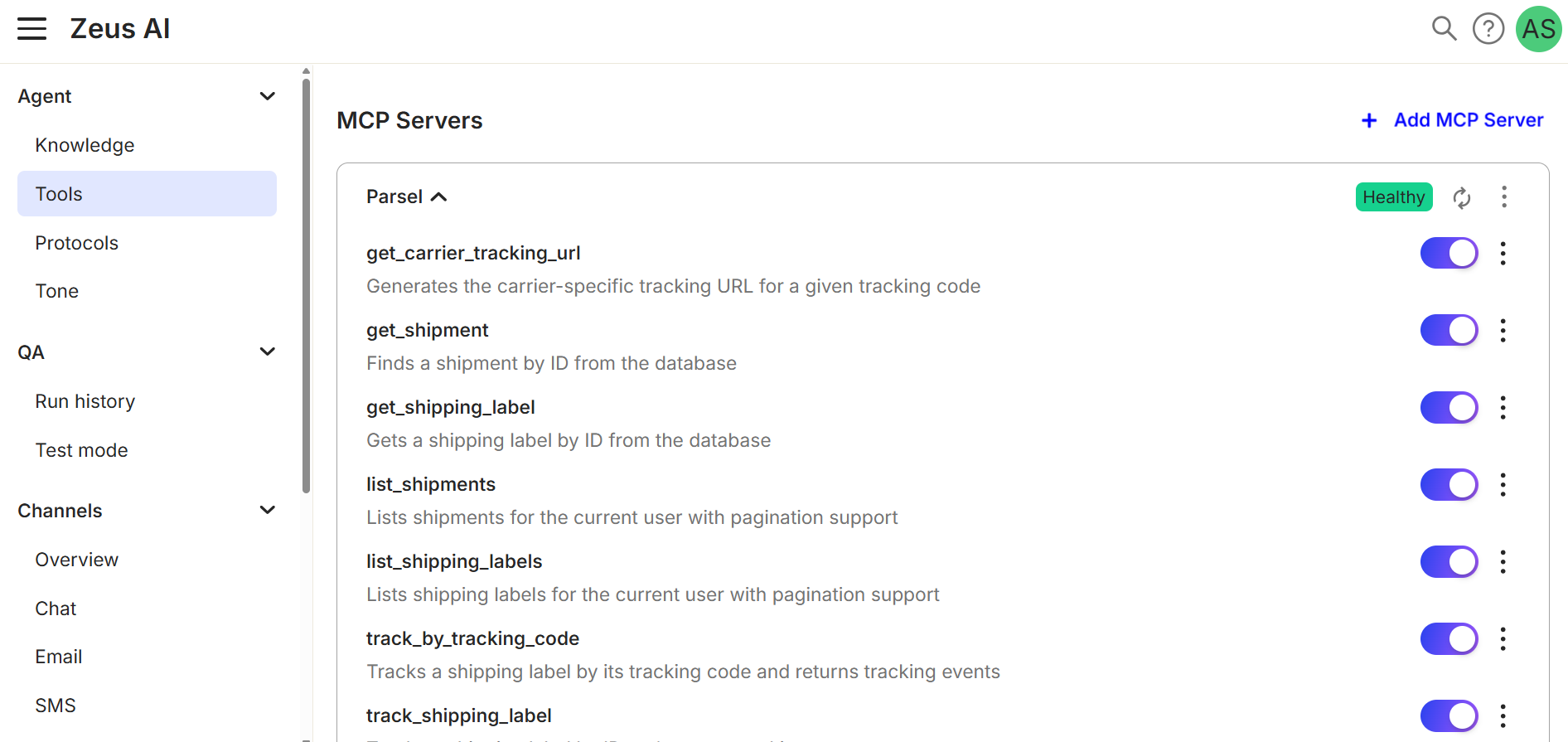
- To enable or disable a tool, go to " Zeus AI > Agent > Tools " and click the MCP Server to expand its available tools.
- Find the specific tool you want to manage.
- Toggle the switch on the right side to on to enable it, or off to disable it.
How to test a tool from a MCP server connection
Use the Test Tool action to verify that an MCP server tool works as expected and to view the results it returns.
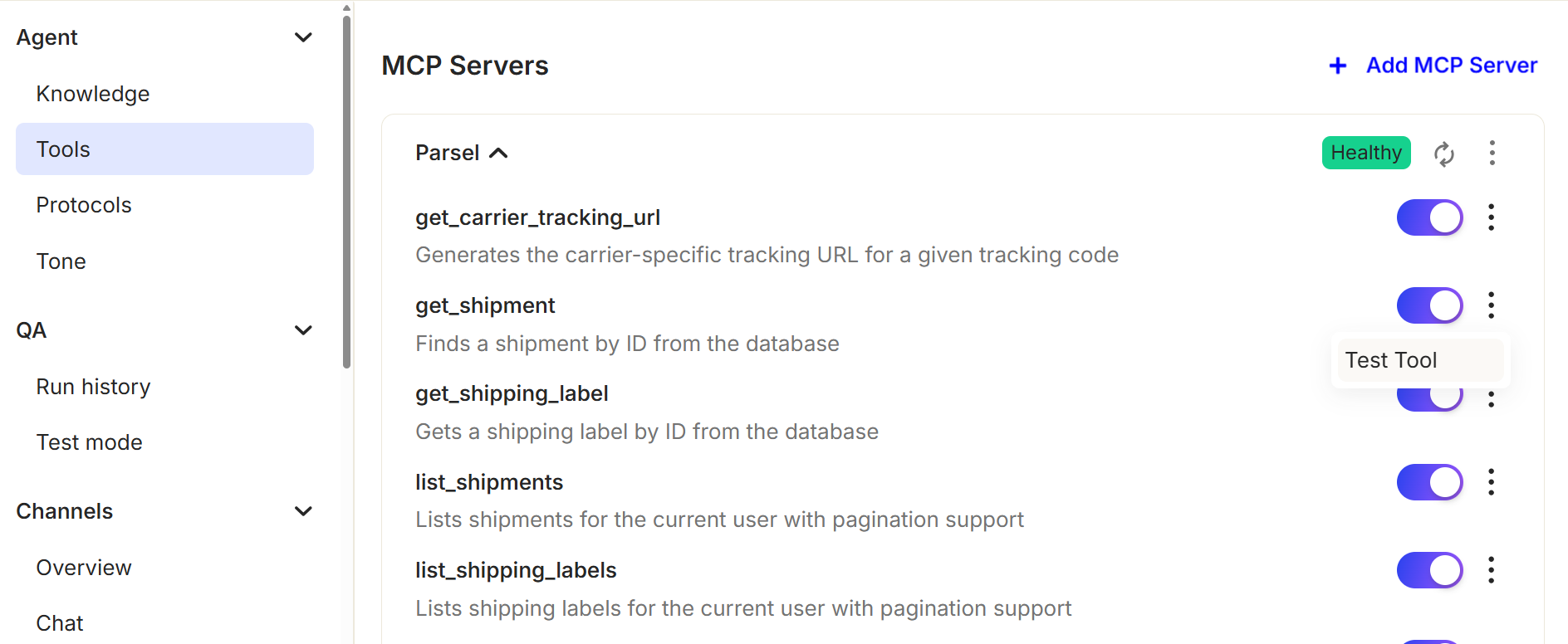
- Go to " Zeus AI > Agent > Tools ", locate the MCP server, and click it to expand the list of available tools.
- Locate the tool you want to test, click the ellipsis (⋮) icon next to it, and select "Test Tool".
- Enter the required data for the tool, then click "Run Tool". The results are displayed in the "Test Result" section.
FAQs & Troubleshooting
How do Tools get real-time data?
Zeus AI connects to external applications using MCP (Model Context Protocol) Servers, which serve as a secure bridge between Zeus AI and third-party software (such as Linear, Notion, or custom systems).
What happens when I enable or disable a tool switch?
Toggling a tool's switch to ON enables the tool, while toggling it to OFF disables it. This gives you granular control to manage exactly what the AI can and cannot do at any time.
Can I restore a deleted MCP server?
No. Deleted MCP servers are permanently removed and cannot be restored.
Why is my server in an unverified state?
This occurs because authentication or connection verification failed when adding or configuring the server.
- If using Linear or Notion: Ensure you complete the setup on their authorization page when directed for approval.
- If using Custom: Verify that the Custom MCP server URL is valid and that any required JSON authorization headers or API keys in the Headers field are entered correctly.
Why is my server showing as disconnected?
The active connection to the server was lost or interrupted due to an expired OAuth token, server downtime, or an invalid URL.
To resolve this, locate the server in " Zeus AI > Agent > Tools ", click the Refresh icon (↻) directly next to the status badge (or click the ellipsis icon and select Refresh Tools) to re-check the connection and refresh the available tool list.
What should I do if newly added tools are not showing up?
Go to " Zeus AI > Agent > Tools ", locate your MCP server, and click the Refresh icon (↻) next to the status badge (or click the ellipsis icon and select Refresh Tools) to sync the server status and fetch newly added tools.