

How to manage Zeus AI Protocols
Last updated September 13, 2026
Overview
Protocols are standardized instructions that define how your Zeus AI handles specific customer service workflows and support tickets. Think of protocols as the digital training manual or procedures you would give to human agents when onboarding them.
When visitors send messages or ask questions, protocols dictate the exact response structure or actions to execute.
Key Features
- Custom Instructions & Workflows: Define precise guidelines for handling edge cases, specific customer inquiries, or canned replies.
- Draft & Published States: Test and refine protocols in draft mode before publishing them live to customer-facing channels.
- Rich Text Formatting Toolbar: Style protocol content using formatting controls, including headings, numbered lists, bullet points, task lists, code blocks, callout boxes, tables, images, and horizontal dividers.
- Dynamic Tool Insertion: Reference tools directly within your protocol text to trigger automated system actions seamlessly during customer interactions.
- Agent Discovery Settings: Toggle discovery settings and provide detailed descriptions so Zeus AI knows precisely when to apply the protocol.
How to create a protocol
To create a protocol, go to " Zeus AI > Agent > Protocols " and click "+Add Protocol".
- Enter a clear title in the "Protocol name" field.
- Enter your instructions into the main text editor using the formatting bar at the bottom.
- Type
{{at any point in the editor to view and insert available "Tools" directly into the protocol instructions. - Enable the "Agent Discovery" toggle for agent discovery. When enabled, enter a mandatory description (minimum 10 words, maximum 300 words) detailing when the Zeus AI should apply this protocol.
- Click "Create". The protocol is saved as a "Draft".
How to publish a protocol
- To publish a protocol, go to " Zeus AI > Agent > Protocols " and open the protocol you want to activate.
- Verify that the status indicator in the top right shows "Draft" or it is "Published with pending changes" and click on it.
- Click "Publish" to make the protocol live for Zeus AI.
How to unpublish a protocol
- To unpublish a protocol, go to " Zeus AI > Agent > Protocols " and open the protocol you want to deactivate.
- Verify that the status indicator in the top right shows "Published" and click on it.
- Click "Unpublish" to apply the changes.
How to edit a protocol
- To edit a protocol, go to " Zeus AI > Agent > Protocols ", then locate protocol to edit, click on it or click the ellipsis icon and select "Edit".
- Apply the changes in the content.
Important: When a published protocol is edited, a notification will appear indicating that there are pending changes. Click "Publish changes" to apply them, or "Go back" to return to the protocol list.

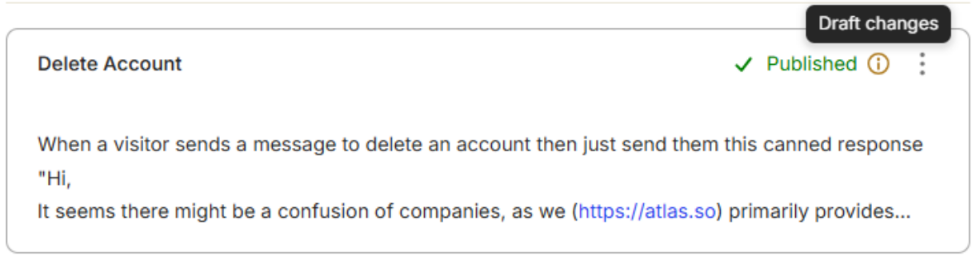
Published protocols with unsaved changes will display the Draft changes icon.
How to delete a protocol
- To delete a protocol, go to " Zeus AI > Agent > Protocols ", then locate protocol to delete, click the ellipsis icon and select "Delete".
- Click "OK" to confirm the action.
Important: Deleted protocols cannot be restored.
FAQs & Troubleshooting
What happens when I publish a protocol?
Publishing makes the protocol live for Zeus AI. The Zeus AI immediately begins applying those instructions, rules, and actions to customer service workflows and support tickets across your active channels.
What happens when I edit a published protocol?
Editing a published protocol creates pending draft changes without disrupting live customer interactions. Zeus AI continues using the existing live version until you explicitly publish the latest changes. A Draft changes icon will indicate that unsaved updates exist.
What happens if I unpublish a protocol?
Unpublishing immediately deactivates the workflow, causing Zeus AI to stop following those instructions for incoming customer messages. The protocol returns to Draft status, preserving all content so you can edit or reactivate it later.
What happens if I delete a protocol?
Deleting a protocol permanently removes it from Zeus AI, and immediately stops executing that workflow. Deletion cannot be undone or restored, so ensure you no longer need the instructions before confirming.
Best Practices for Protocol Design
How do I write an effective protocol or prompt for Zeus AI?
- Structure clear, explicit instructions: Use the rich text toolbar to organize your protocols using headings, bulleted lists, and numbered steps. Well-structured protocols are significantly easier for Zeus AI to follow accurately.
- Integrate dynamic tools effectively: Use the
{{shortcut to embed relevant tools directly within your workflow steps. Clearly define the exact trigger conditions for each tool so Zeus AI knows precisely when to execute the tool during a customer interaction. - Define edge cases: Tell Zeus AI what to do when critical details are missing, when a request is ambiguous, or when an issue needs escalation to a human agent.
- Provide concrete example responses: Use callout boxes or quote blocks to define mandatory disclaimers, exact phrasing, or canned response structures.
- Iterate in Draft mode: Check and refine prompt clarity in Draft state before publishing updates directly to live customer channels.