

How to manage Zeus AI Front Integration
Last updated October 23, 2026
Overview
The Front integration allows administrators to connect Zeus AI with their Front workspace to automate customer response workflows. By analyzing incoming conversations against configured rules and response settings, Zeus AI can generate responses, route escalated conversations to the right team members, update conversation tags, and optionally archive conversations after replying.
Key features
The Front integration gives administrators control over how Zeus AI manages conversations, from responding to incoming messages to handling escalations, with configurable response settings and automated actions.
- Active Response Mode: Enables Zeus AI to process and respond to incoming Front conversations based on the configured response settings.
- Response Configuration: Defines which Front teammate Zeus AI uses to send messages, the sender name, response tone, first response tone, signature, and whether conversations are archived after a reply.
- Automated Escalation Handling: Adds an internal escalation comment, assigns escalated conversations to a designated teammate, and adds or removes tags according to your configuration.
How to connect Front
Front is a customer communication platform where teams manage conversations in shared inboxes. The Front integration allows Zeus AI to connect to your Front workspace and work with those conversations.
To connect Front:
- Go to " Zeus AI > Platform > Front ".
- Enter the "Front API Token".
- Enter the "Front App Secret".
- Click "Connect". After the connection is established, the remaining Front configuration fields become available.
Response Modes
- Select the "Response Mode" for Zeus AI:
- "Read-Only Mode": Zeus AI generates responses for QA and preview purposes, but no live replies are sent.
- "Active Response Mode": Zeus AI actively responds to Front conversations using the response configuration and escalation rules.
Response Configuration
- In the "Response Configuration" section, configure how Zeus AI sends and formats messages in Front. Depending on the selected "Response Mode", different settings become available.
- When Read-Only Mode is on:
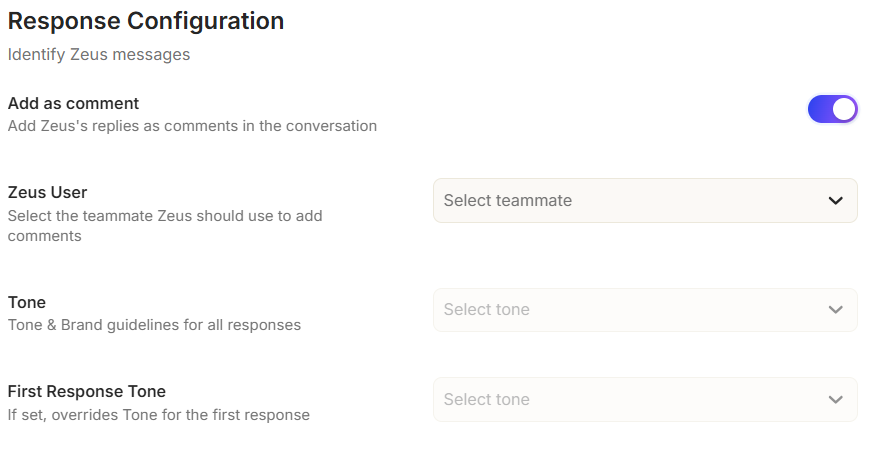
- "Add as a comment": Add Zeus's replies as comments in the conversation.
- "Zeus User": Select the teammate account that Zeus should use when adding comments. This setting is available only when "Add as comment" is enabled.
- "Tone": Select the tone and brand guidelines Zeus AI should use for responses.
- "First Response Tone": Select the tone for the first response in a conversation. When configured, this overrides the general "Tone" setting for the first response.
- When Active Response Mode is on:
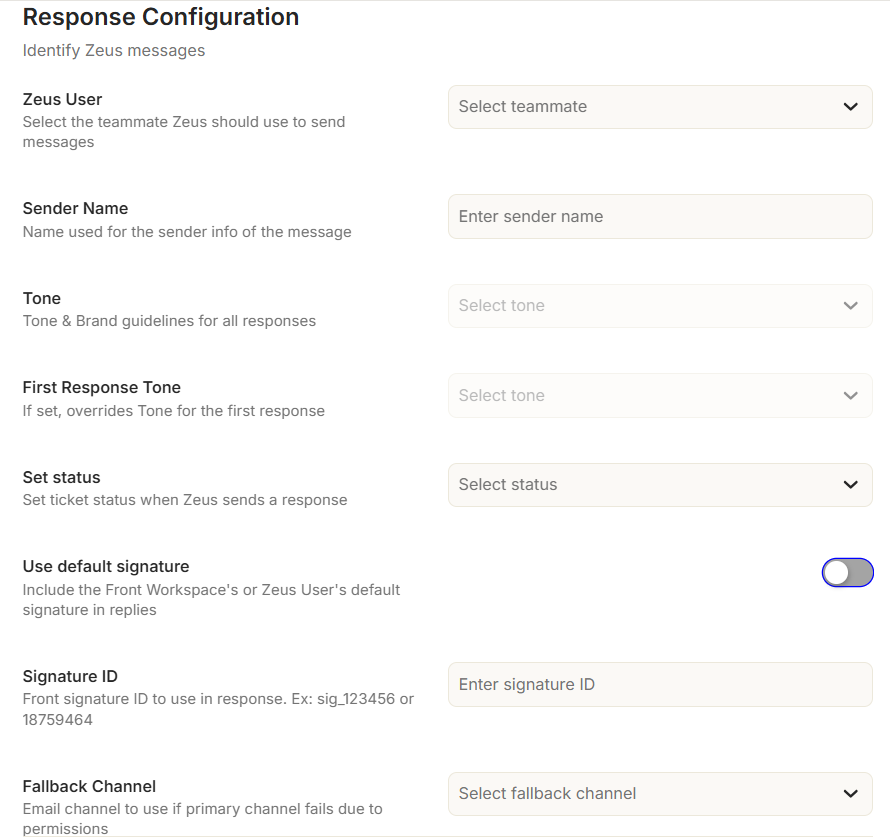
- "Zeus User": Select the Front teammate that Zeus AI should use to send messages. A teammate must be selected for Zeus AI to send responses through Front.
- "Sender Name": Enter the name that should be displayed as the sender of Zeus AI messages. The default value can be changed to the sender name you want customers to see.
- "Tone": Select the tone and brand guidelines Zeus AI should use for responses.
- "First Response Tone": Select the tone for the first response in a conversation. When configured, this overrides the general "Tone" setting for the first response.
- "Set status": Select the ticket status to apply when Zeus AI sends a response: Open, Waiting, or Resolved.
- "Use default signature": Enable this option to include the Front workspace's or Zeus User's default signature in replies.
- "Signature ID": Enter the Front signature ID to use in responses when you are not using the default signature. The field accepts a Front signature ID.
- "Fallback Channel": Select an email address to use if the primary channel fails due to permission issues. This option is available only when the "Use default signature" setting is enabled.
- "Archive after reply": Enable this option to automatically archive the Front conversation after Zeus AI sends a reply. This option only appears when the connected Front account doesn't use ticket statuses.
Escalation Rules
7. In the "Escalation Rules" section, specify the automatic actions Zeus AI should take whenever a Front conversation is escalated. Depending on the selected "Response Mode", different settings become available.
- When Read-Only Mode is on:
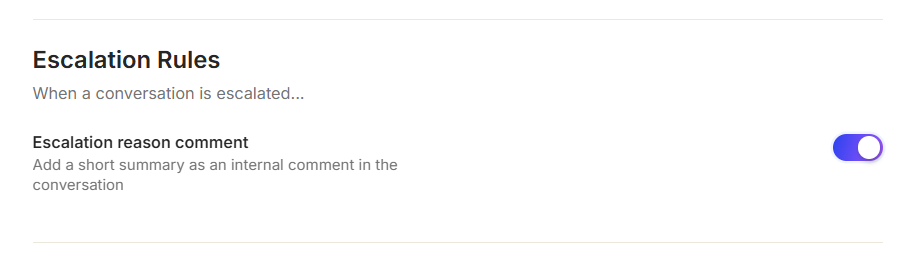
- "Escalation reason comment": Enable this option to add a short summary as an internal comment in the conversation when an escalation occurs. This allows the assigned teammate to understand why the conversation was escalated.
- When Active Response Mode is on:
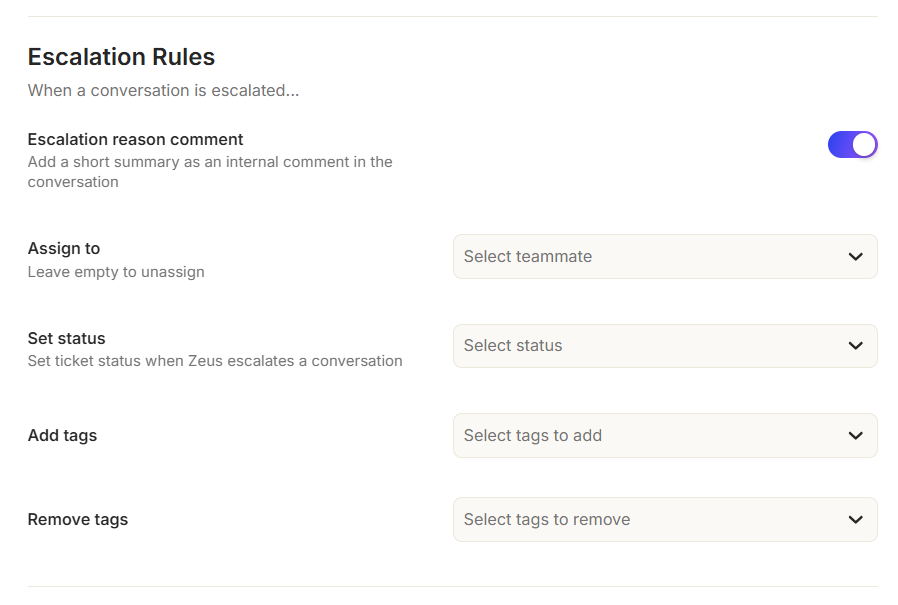
- "Escalation reason comment": Enable this option to add a short summary as an internal comment in the conversation when an escalation occurs. This allows the assigned teammate to understand why the conversation was escalated.
- "Assign to": Select the Front teammate who should receive an escalated conversation. Leave this field empty if you do not want Zeus AI to automatically assign the conversation to a specific teammate.
- "Set status": Set ticket status when Zeus escalates a conversation.
- "Add tags": Select the Front tags that Zeus AI should automatically add when a conversation is escalated.
- "Remove tags": Select the Front tags that Zeus AI should automatically remove when a conversation is escalated.
8. Click "Save" to update the settings.
Danger zone
The "Danger zone" section contains the option to disconnect the Front integration. Use the "Disconnect" option only if you want to remove the existing Front connection.
FAQs & Troubleshooting
Why is Zeus AI not responding to Front conversations?
Ensure the Front integration is connected and "Active Response Mode" is enabled. Also verify that a valid teammate is selected in the "Zeus User" field and that the required response configuration has been completed.
What is the Front API Token?
The Front API Token is used to authenticate requests from Zeus AI to Front. It allows Zeus AI to securely access the Front workspace data and perform the actions required by the integration, such as retrieving teammates and tags and managing conversations.
What is the Front App Secret?
The Front App Secret is used to verify webhook requests sent by Front to Zeus AI. It helps Zeus AI confirm that incoming webhook requests are authentic and originated from Front.
What is the difference between Read-Only Mode and Active Response Mode?
"Read-Only Mode" allows you to generate and review Zeus AI responses for testing and QA without sending live replies to customers. "Active Response Mode" allows Zeus AI to send live replies directly to Front conversations.
What does the "Zeus User" setting control?
The "Zeus User" determines which Front teammate Zeus AI uses to send responses. A valid teammate must be selected before Zeus AI can send messages.
What does the "Sender Name" control?
The "Sender Name" determines the name displayed as the sender of messages generated by Zeus AI in Front.
Can I use a different tone for the first response?
Yes. The "First Response Tone" allows you to specify a different tone for the first response. When selected, it overrides the general "Tone" for that first response.
How do signatures work in the Front integration?
Enable "Use default signature" to use the Front workspace's or Zeus User's default signature. If this option is not enabled, enter the appropriate "Signature ID" to specify which Front signature should be used.
What happens when "Archive after reply" is enabled?
When "Archive after reply" is enabled, Zeus AI archives the Front conversation immediately after sending its response.
What happens when a conversation is escalated?
When a Front conversation is escalated, Zeus AI can add an internal escalation reason comment, assign the conversation to a specific teammate, add selected tags, and remove selected tags according to the settings configured under "Escalation Rules".
Can Zeus AI update Front conversation tags during an escalation?
Yes. Zeus AI can automatically add and remove Front conversation tags based on the "Add tags" and "Remove tags" settings under "Escalation Rules".
What happens if no teammate is selected under "Assign to"?
If "Assign to" is left empty, Zeus AI does not automatically assign the escalated conversation to a specific teammate.
Why are Front teammates or tags not loading?
Verify that the Front integration is connected and that the Front API Token is valid and has the required permissions to access the workspace data. If the issue persists, verify that the connected Front account has access to the relevant workspace data.
Can I disconnect Front?
Yes. Use the option in the "Danger zone" section to disconnect the Front integration. Once disconnected, Zeus AI will no longer process conversations through that Front connection.
Why is my Front webhook not working?
Verify that the webhook is correctly configured in Front and that the webhook URL is reachable by Zeus AI. Also verify that the "Front App Secret" matches the secret configured for the Front app. If the webhook signature cannot be verified, Zeus AI will reject the webhook request to prevent unauthenticated or invalid events from being processed.
What happens if a Front webhook cannot be verified?
If Zeus AI cannot verify the webhook request using the Front App Secret, the request is rejected and the event is not processed. This helps prevent unauthorized or invalid requests from triggering actions in the Front integration.